
One setting, turned on correctly, stops almost every account takeover. Here’s how to do it well, not just turn it on.
If you’ve heard “turn on two-factor authentication (2FA)” before, you’ve heard good advice. The federal Cybersecurity and Infrastructure Security Agency (CISA) says using multi-factor authentication makes an account about 99% less likely to be hacked. But not every version of 2FA is equally strong, and a few small choices make a real difference.
What 2FA actually is
2FA adds a second step after your password when you log in, something only you have or are, so a stolen password alone isn’t enough to get in.
The three common types, from good to best
- Text message code (SMS), a code sent to your phone. Better than nothing, but the weakest option, because a criminal can sometimes trick your phone carrier into moving your number to their device (a “SIM swap”).
- Authenticator app, an app like Google Authenticator or Microsoft Authenticator generates a changing code on your phone, without needing cell service. Stronger than text codes.
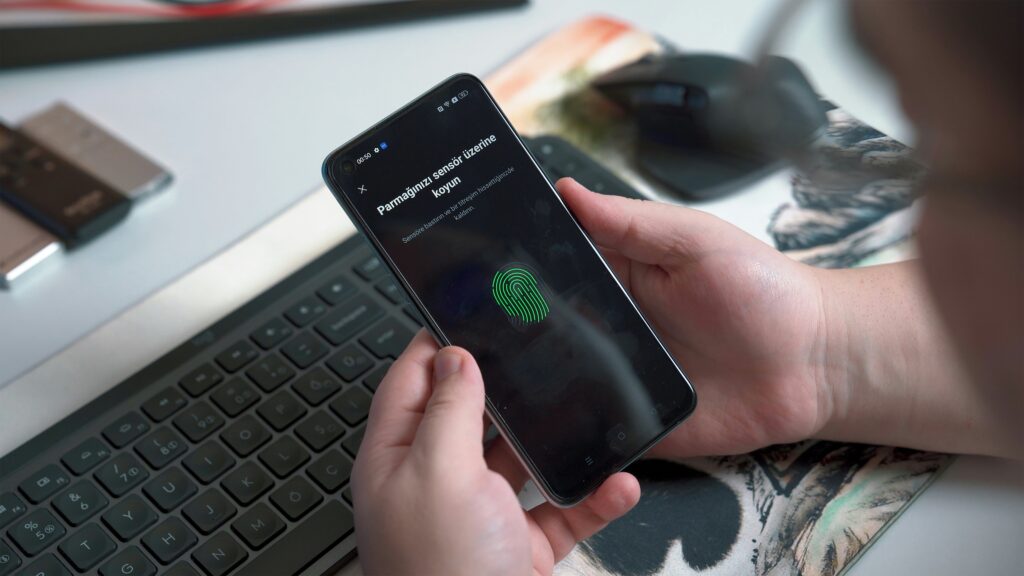
- Passkey or security key, using your fingerprint, face, or a physical key to confirm it’s you. This is the strongest option, and it can’t be phished the way a typed code can.
Do this: if text codes are all you’ve set up, that’s a real improvement already. When you have a few extra minutes, upgrade your most important accounts (email, banking) to an authenticator app or a passkey.
How to actually turn it on
- Open your account’s Security settings (in Gmail, Outlook, your bank’s app, and so on).
- Look for 2-Step Verification, Two-Factor Authentication, or Multi-Factor Authentication.
- Choose the strongest option offered that you’re comfortable with.
- Save your backup codes somewhere safe (written down, or in your password manager), so you’re never permanently locked out if you lose your phone.
- Repeat for your other important accounts, starting with email (since it can reset your other passwords), then banking.
The mistake that undoes it
2FA doesn’t help if you approve a code you didn’t request. If your phone asks “was this you?” and you weren’t logging in, tap No and change that password right away, someone else has it.
Keep learning, free
Lumoset’s free course, Email & Online Accounts · Level 1: Getting Started Safely, walks through setting up 2FA on your specific accounts, step by step. No account needed to learn; a quiz or certificate needs one. Always free, at lumoset.org.
Sources: Cybersecurity and Infrastructure Security Agency, More than a Password (cisa.gov/MFA) (MFA reduces account-compromise risk by approximately 99%).